
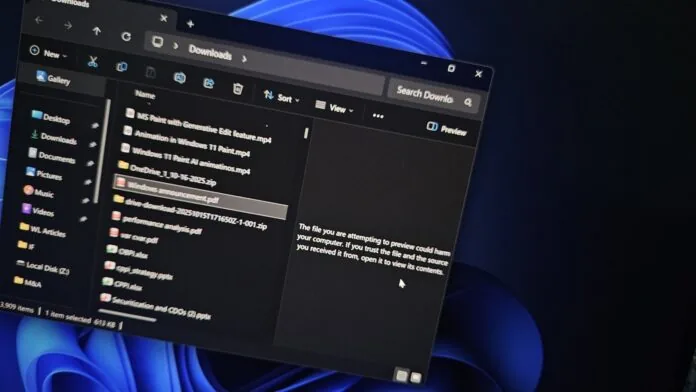
For users unfamiliar with the process, File Explorer has two panes. One is the “Details” pane, which displays information about the selected file, such as file size, creation date, etc.
 By Frank Ulom
·
Published on August 24, 2026
·
4 min read
By Frank Ulom
·
Published on August 24, 2026
·
4 min read
Windows 11’s File Explorer is restoring a feature previously disabled due to security concerns, adding a “Preview anyway” button. This feature will begin rolling out in the coming weeks.
Recall that in early October 2025, users discovered that File Explorer no longer displayed previews of files downloaded from the Internet in the preview pane, which some people initially thought was abnormal behaviour or a bug.
Microsoft later confirmed that it intentionally blocked the preview function in File Explorer for security reasons, which prevented users from quickly browsing PDFs and other documents.
For users unfamiliar with the process, File Explorer has two panes. One is the “Details” pane, which displays information about the selected file, such as file size, creation date, etc. It can also display in-depth metadata for images without opening the file, such as dimensions and even exposure time. The Details pane continues to function correctly after the recent update.
The second pane, which is probably the one most of us use more often, is the “Preview Pane.” It allows you to quickly view the contents of PDFs, documents, images, and other files without opening them in Office applications, Adobe Acrobat, Microsoft Edge, or other programs.
However, this convenience for files downloaded from the internet has disappeared since the security changes in October 2025. Below is a screenshot of an attempt to preview a file downloaded from cloud storage:
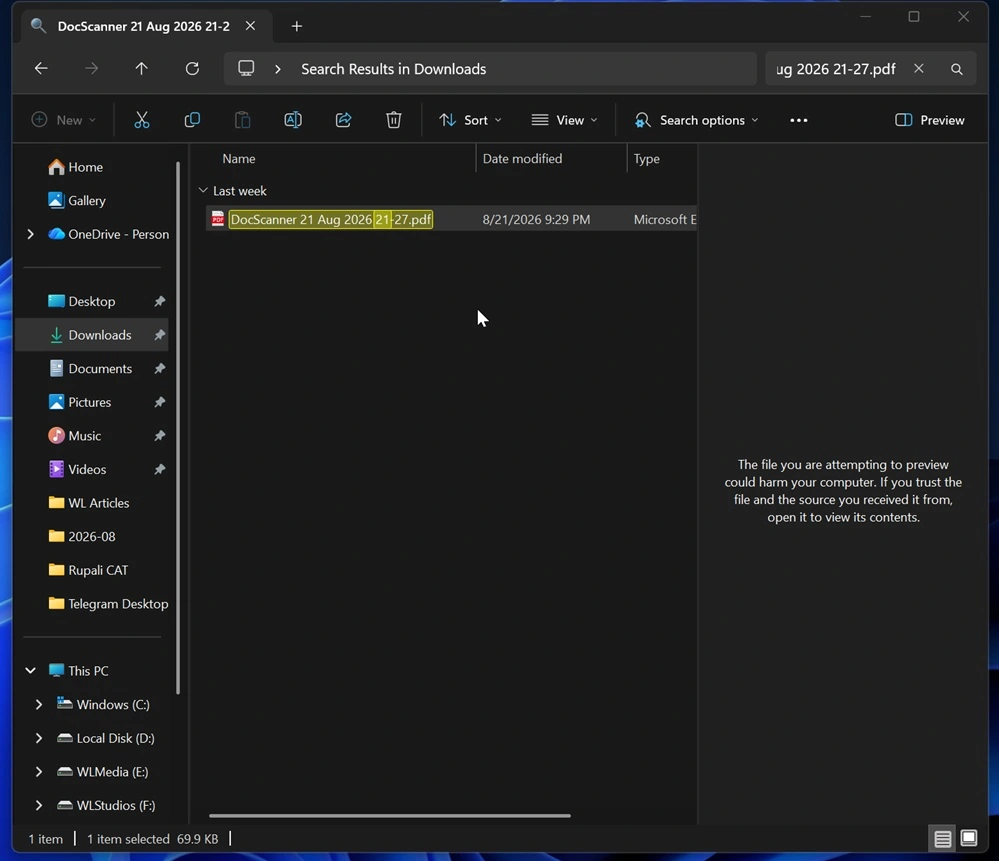
File Explorer warns, “The file you are trying to preview may harm your computer. If you trust the file and its source, open it to see its contents,” but it doesn’t tell you what to do next.
If you’ve already searched for this question, you might know that you need to right-click the file, open “Properties,” and then check the “Unlock” option under the “Security” tab to allow previewing the file.
In contrast, if the same PDF is created locally on the computer, the preview pane in File Explorer will work normally.
Why does Microsoft prevent File Explorer from previewing downloaded files?
This restriction was introduced on October 14, 2025, after Microsoft discovered that previewing insecure files could leak NTLM hashes.
Since File Explorer cannot simply assume that every downloaded file is safe, Microsoft decided to disable the preview pane by default for files marked as coming from the Internet.
“This change mitigates a vulnerability that could lead to NTLM hash leakage if a user previews a file containing HTML tags (such as img, iframe, etc.) that reference external paths. Attackers could exploit this preview feature to capture sensitive credentials,” Microsoft stated in a support document.
In its testing, Windows Latest found that the restriction applies to files with a “Mark of the Web” tag, including many files downloaded via browsers, email attachments, cloud storage, and other internet sources.
Until now, if you trust one of these files, your options are either to manually unlock it via “properties” or to rely on PowerShell scripts to automate the process.
Windows 11 will add a “Preview Still” button.
Microsoft is finally addressing this inconvenience without simply removing security protections. Windows Latest has discovered that the company is testing a new “Preview Still” button that allows you to override the warning for files you trust.
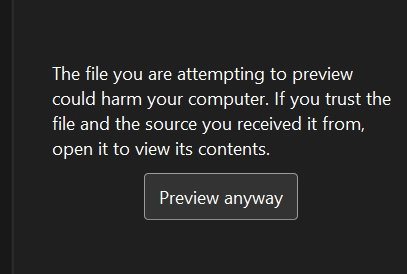
This feature first appeared in the release notes for Windows Insiders in April 2026:
“New: In File Explorer, after viewing a warning for files downloaded from the Internet, a ‘Preview Anyway’ button has been added to the preview pane.”
However, this change was never rolled out outside of the Insider testing channel at the time. It is expected to begin rolling out in the coming weeks, possibly as early as next month.
Once this feature is live, File Explorer will still issue warnings for downloaded files, but if you know and trust the file, you can click “Preview anyway” and view it directly in the preview pane.
This is a better compromise: the company retains security restrictions by default, and users no longer need to search through “properties” or run PowerShell commands to preview a file that is already trusted.
