
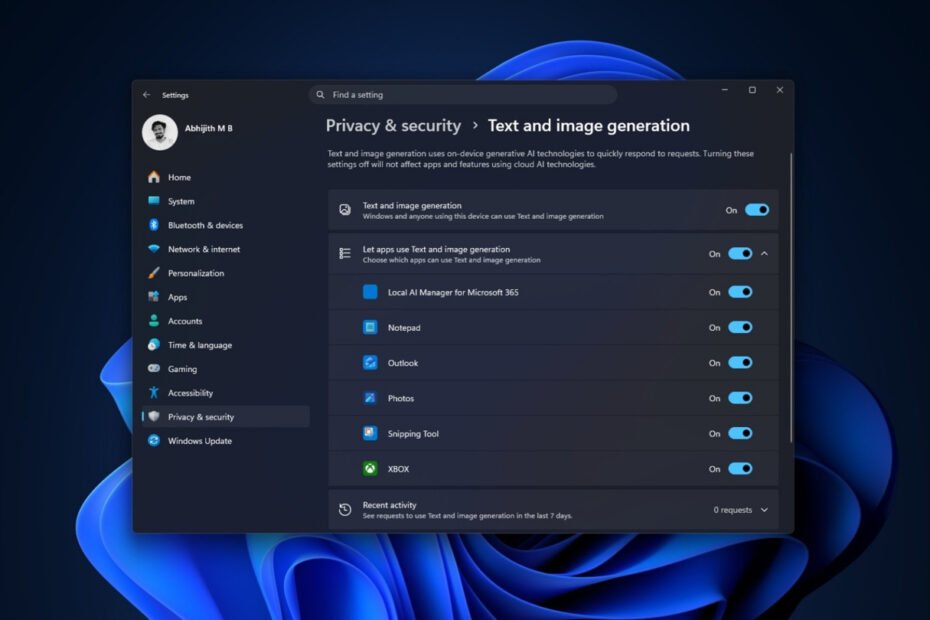
Microsoft added this page simply to record which applications have used Windows-provided on-device generative AI models, and to allow users to control which applications can use these models.
 By Frank Ulom
·
Published on August 30, 2026
·
3 min read
By Frank Ulom
·
Published on August 30, 2026
·
3 min read
According to WindowsLatest, a screenshot of Windows 11’s “Settings” has recently gone viral online, garnering millions of views. The screenshot shows that under “Settings > Privacy & Security > Text and Image Generation,” multiple applications, including Notepad, Photos, Snipping Tool, and Outlook, appear in a setting related to on-device AI. Some users have mistakenly believed this to be evidence that “Windows is secretly running AI in the background, consuming system resources.”
Some posts also used this opportunity to promote Windows optimisation services, while claiming that Microsoft was running AI without user permission, which was dragging down game performance.
However, WindowsLatest states that scrolling down to the “Recent Activity” section reveals a clear indication of “0” requests. Since “Text Generation” shows 0 requests, how could these users’ memory be being heavily used?
Windows 11’s “Text and Image Generation” settings do not mean that AI is running.
Microsoft added this page simply to record which applications have used Windows-provided on-device generative AI models, and to allow users to control which applications can use these models.
Microsoft’s official documentation clearly states that the page “displays apps that have recently used Windows-provided on-device generative AI models” and allows users to “select which apps can use generative AI technology.”
Clearly, the “list of applications with permission” and the “list of applications performing related operations” are two different things. Any application on the page may only have permission to use AI without actually issuing an AI request. However, since this page is specifically designed to track the activity of applications with AI text and image generation capabilities, these applications will still appear in the list.
More importantly, these posts deliberately omitted the phrase “device-side.” Windows describes this feature as running on the NPU of the Copilot+ PC. An NPU is a chip specifically designed for AI workloads, and Microsoft requires the Copilot+ PC’s NPU to have a computing power of 40 TOPS or higher.
This means that even if text or image generation does occur, it won’t be done via the CPU, GPU, or regular system memory. However, not all Windows AI features are now limited to Copilot+ hardware. For example, Phi Silica can now also run on some NVIDIA and AMD GPUs, but that’s another topic. This page displays models provided by Windows.
On a non-Copilot+ PC without an NPU, we tried disabling and re-enabling this setting while observing memory usage. The result was as expected; there was no change.
If you zoom in on these widely circulated screenshots, you’ll find that these so-called “AI settings” didn’t actually send a single request; in other words, they didn’t even run the AI model.
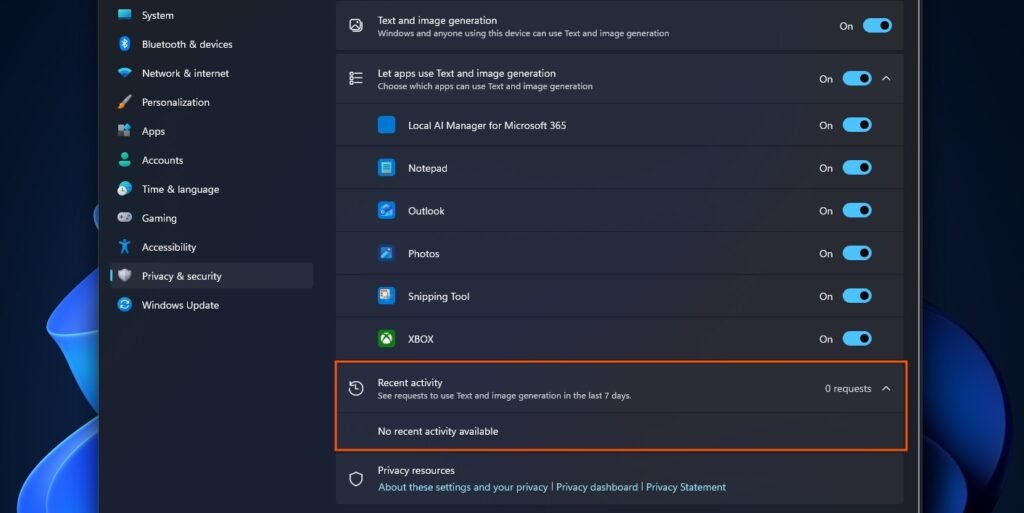
If the AI inference task were continuously running in the background, there should be a constant stream of request records. The statement of “0 requests” contradicts the claim that “something is continuously consuming system resources in the background.”
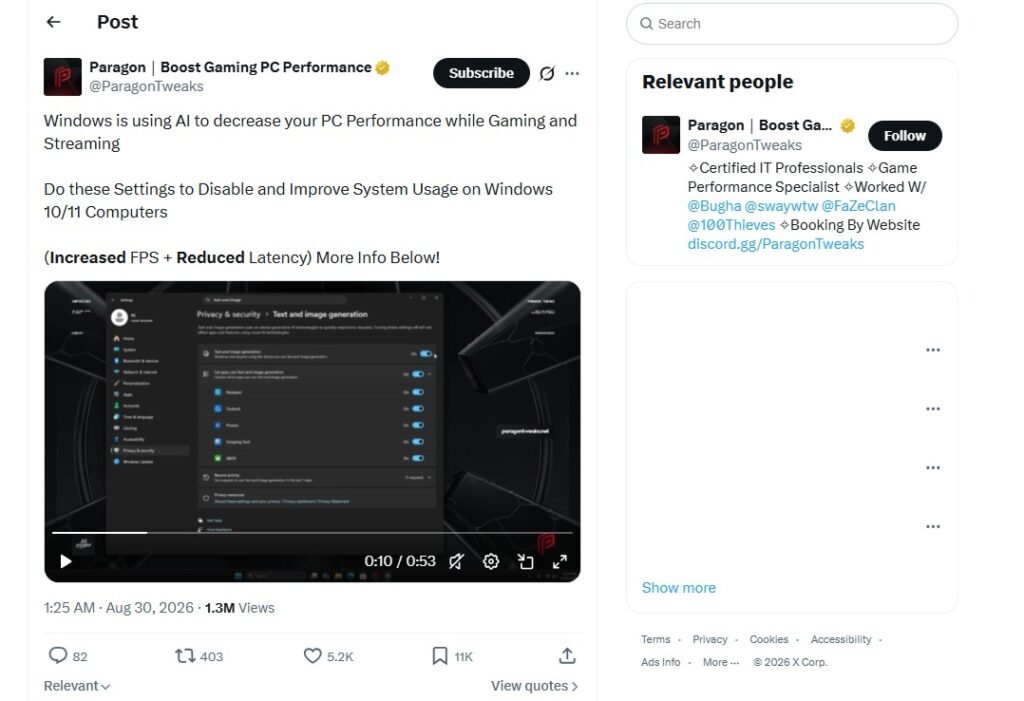
Daily Lamp noticed that an account named ParagonTweaks posted, “Windows is using AI to slow down your PC performance when you’re gaming and streaming.” The account then directed users to purchase a paid optimisation tool to solve the supposed problem. Clearly, they were just using this opportunity to promote their own optimisation tool.
